Overview
This guide explains how a Customer Administrator configures Single Sign-On (SSO) through an OIDC identity provider, and how users and administrators configure Two-Factor Authentication (2FA), on the AirShield console.
- SSO lets a third-party identity provider (IdP) validate user access to AirShield, optionally replacing password-based login entirely.
- 2FA adds a second verification step (email code, TOTP authenticator app, or WebAuthn passkey) on top of login, and can be required organization-wide.
SSO and 2FA are independent settings and can be used together.
Prerequisites and Who Can Do This
Who can do this: Any user with the Customer Administrator role for your organization. You do not need to contact support to configure SSO or 2FA. Both are self-service from the console.
Before configuring SSO, have the following ready from your OIDC identity provider:
- The IdP's OIDC discovery/issuer URL
- A client ID and client secret registered for AirShield
- The list of email domains you want to approve for automatic account creation (if using that option)
No prerequisites are required to configure 2FA. Any user can enroll from their own profile, and admins can enforce it from System Configuration.
Configuring Single Sign-On (OIDC IdP)
Single Sign-On lets a third-party identity provider validate user access and permissions to the AirShield platform, instead of (or alongside) AirShield's own password login.
- Sign in as a Customer Administrator.
- Open the Administration dropdown and select System Configuration.
- Go to the SSO / OIDC IdP settings section and enter your identity provider's details (issuer/discovery URL, client ID, client secret).
- Configure the options below as needed, then save.
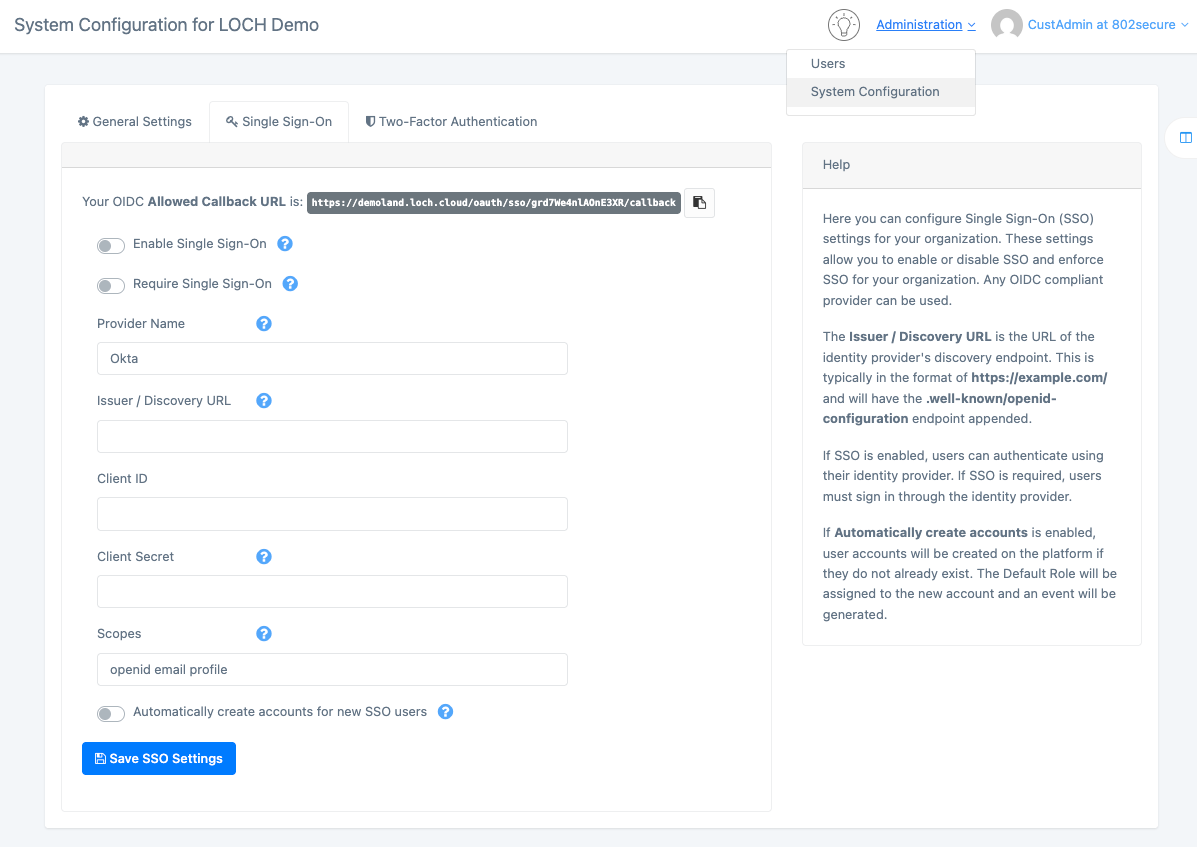
SSO Options
- Require Single Sign-On — When enabled, all users must exist in your configured SSO provider and can no longer authenticate with an AirShield password.
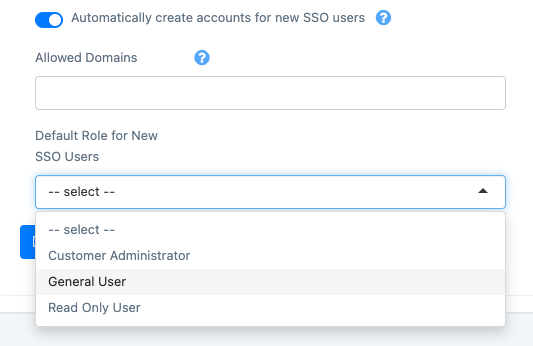
- Automatically Create Accounts for New SSO Users. When enabled, any user signing in with an approved email domain automatically gets an AirShield account created with the configured role, instead of requiring an admin to pre-create each account.
Enabling Require Single Sign-On immediately disables password-based login for your organization's users. Confirm your IdP configuration works — test with a non-admin account first — before requiring it for everyone.
How SSO and 2FA Work Together
- SSO and 2FA are independent settings. SSO controls how a user proves their identity (via your IdP instead of an AirShield password); 2FA is an additional verification step layered on top.
- When Require Single Sign-On is on, your identity provider is responsible for its own authentication requirements (including any MFA it enforces) as part of the sign-in flow.
- Your organization's own 2FA requirement is enforced independently. If a user is required to have, or has already enrolled 2FA, they will still complete the 2FA challenge after signing in via SSO. Don't be surprised to see both prompts for users who have both enabled.
Was this article helpful?
That’s Great!
Thank you for your feedback
Sorry! We couldn't be helpful
Thank you for your feedback
Feedback sent
We appreciate your effort and will try to fix the article