Configuring Two-Factor Authentication (User Self-Service)
Two-Factor Authentication can be enabled per user, or required organization-wide by an admin (see next section). Three methods are supported:
Method | How it works |
|---|---|
A six-digit code is emailed to you at sign-in | |
TOTP Authenticator | A six-digit code from an authenticator app (e.g. Google Authenticator, Authy) |
Passkey | WebAuthn passkey using your device's biometrics (Face ID, Touch ID, fingerprint) or PIN |
Backup/recovery codes can be generated for the Email and TOTP methods in case those become unavailable.
To set up Email or TOTP:
- Go to your Edit User Profile page from the console dashboard.
- Select Authenticator / Email.
- Choose Email or Authenticator.
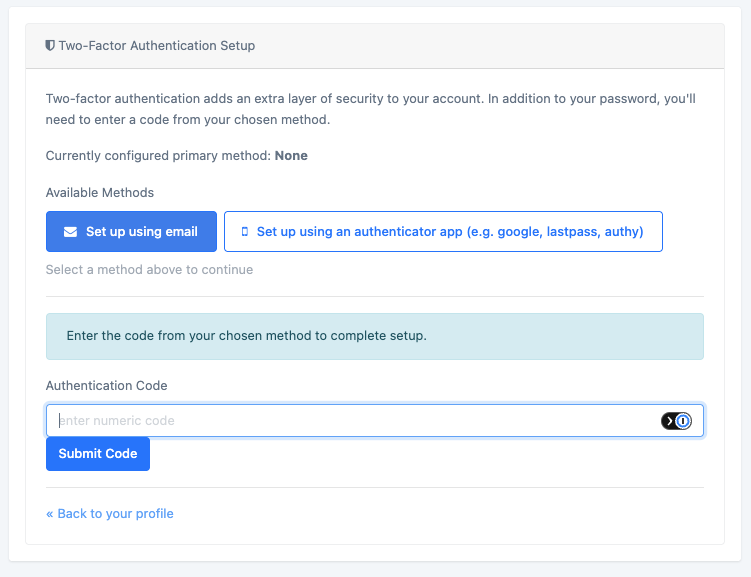
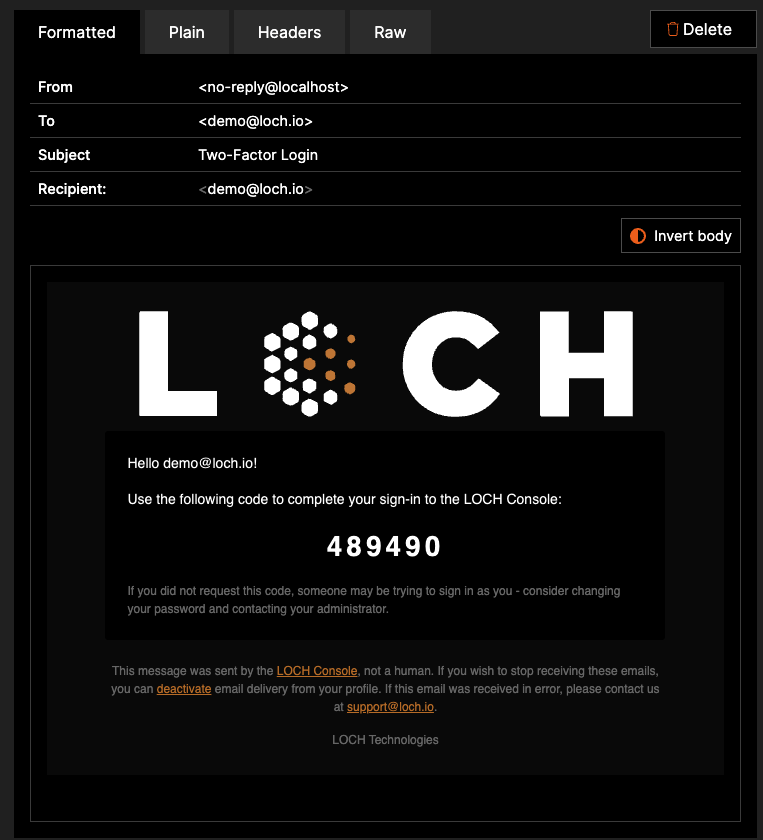
- Email: a code is sent to your address and you enter it to confirm.
- Authenticator: scan the QR code (or enter the setup key manually) in your authenticator app, then enter the generated code to confirm.
User Configuration
Users can enable their allowed 2FA methods by visiting the https://console.loch.io/edit_user_profile page and configuring any of the supported methods:
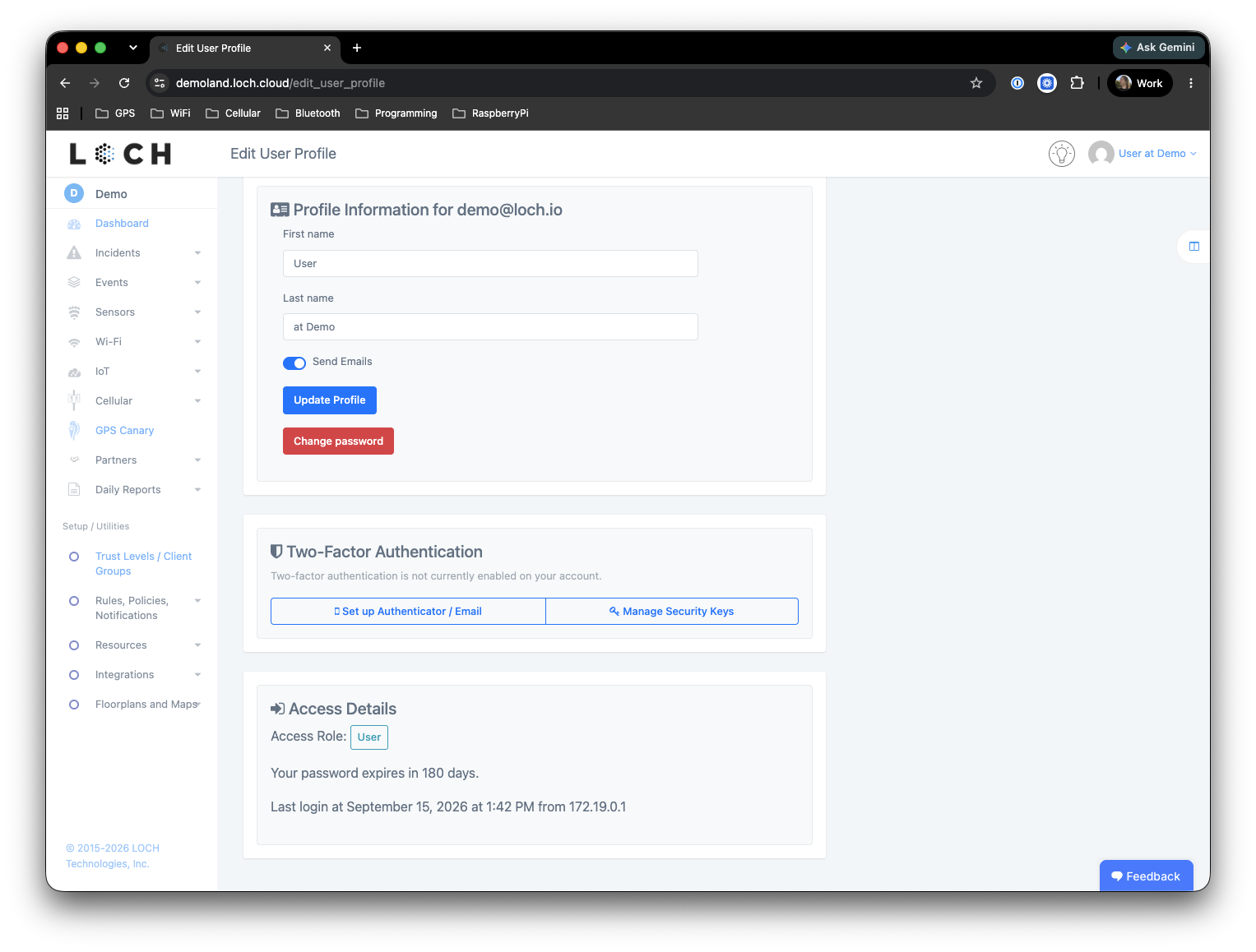
Setting Up TOTP Authenticator or Email
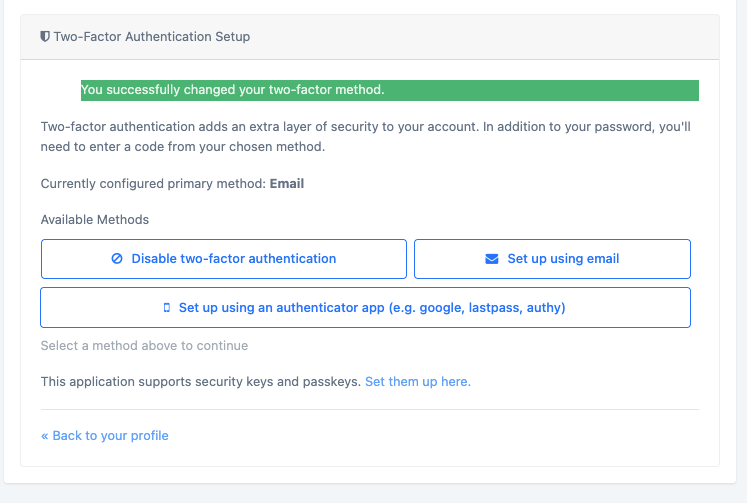
Selecting the Authenticator / Email option loads the following page:
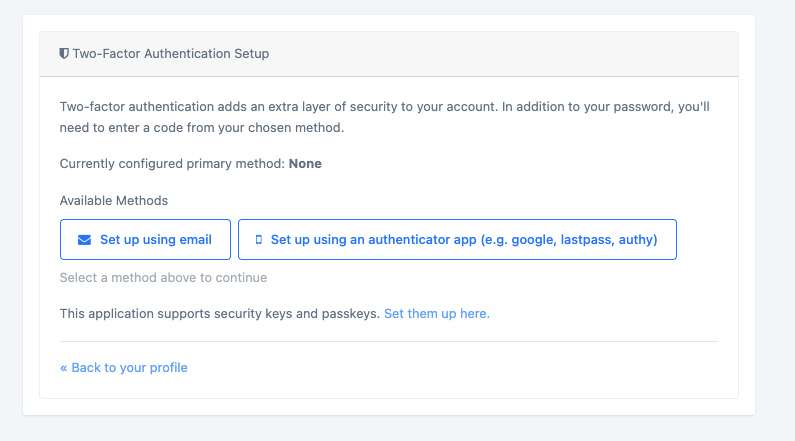
From here select the method to setup, Email or Authenticator and follow the steps for setup. For Email you will be sent a code to validate delivery. Authenticator requires loading a QR Code or series of characters to configure the TOTP process.
Setting up Passkeys
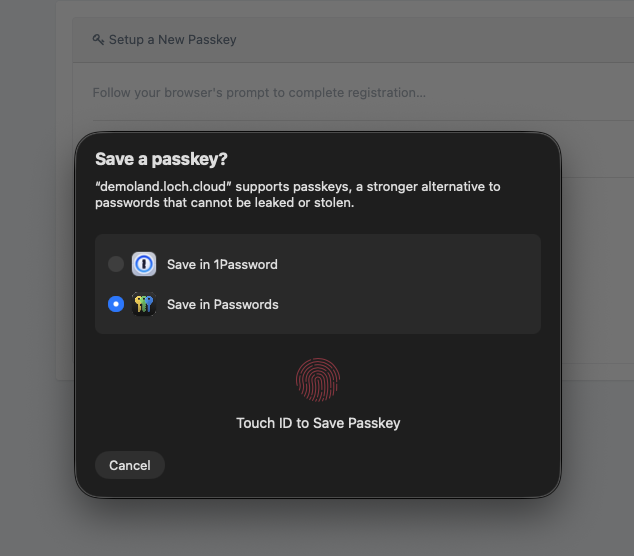
Passkeys are a secure and user-friendly authentication method that can serve as an alternative to or be used alongside traditional authentication methods. Passkeys provide a simpler and more secure login experience by leveraging the device's locking mechanism, whether based on biometrics (e.g., Face ID, Touch ID, or fingerprint), PIN code, or another method.
With passkeys, you can sign in without remembering passwords, making the login experience faster and safer, using what the user has (biometrics), instead of what the user knows and needs to memorize (passwords).
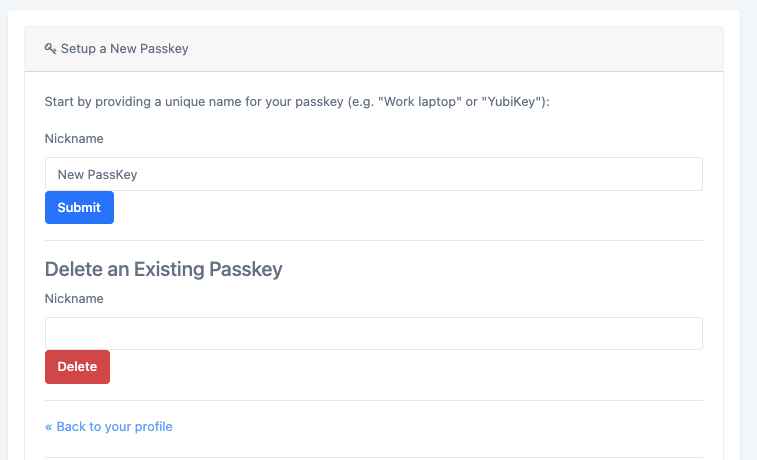
Multiple Passkeys may be configured by following the Setup Passkeys button from the Edit User Profile page.
Administrator 2FA Enforcement
Administrators can require 2FA for the entire organization instead of leaving it optional per user.
- Open the Administration dropdown and select System Configuration.
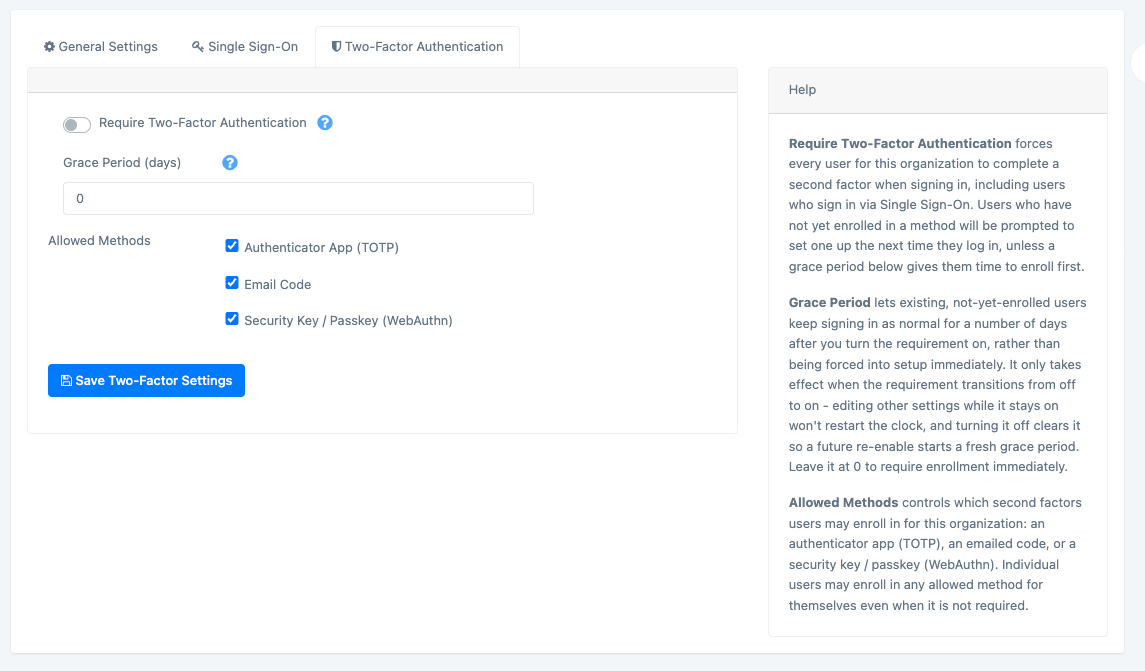
- In the 2FA settings section, configure:
- Require 2FA: Enforce two-factor authentication for all users.
- Grace period (days): How long a not-yet-enrolled user can keep signing in before being forced to set up 2FA once the requirement is turned on.
- Allowed methods: Restrict which of Email / TOTP / Passkey your users may enroll with.
Users who haven't enrolled by the end of the grace period (or immediately, if no grace period is set) are prompted to set up 2FA on their next login.
Resetting a User's 2FA
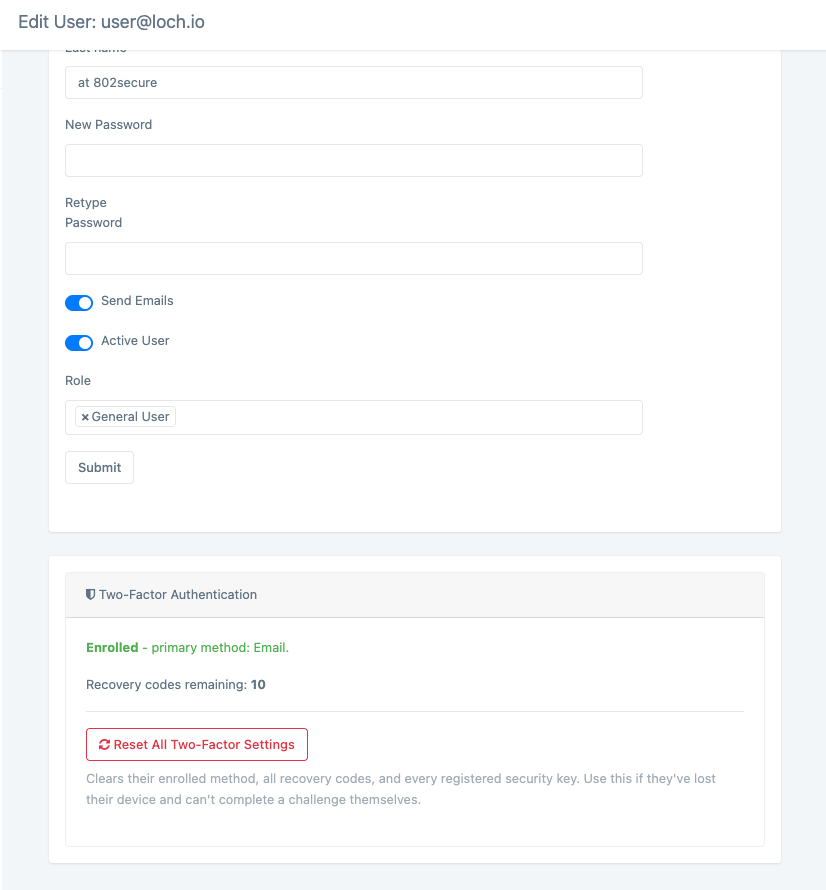
If a user loses access to their authenticator, email, or passkeys, a Customer Administrator can reset it for them:
- Open the Administration dropdown and go to the user's Edit User page.
- Select Reset All to remove that user's 2FA enrollment.
- If 2FA is required organization-wide, the user will be prompted to re-enroll the next time they log in.
How SSO and 2FA Work Together
- SSO and 2FA are independent settings. SSO controls how a user proves their identity (via your IdP instead of an AirShield password); 2FA is an additional verification step layered on top.
- When Require Single Sign-On is on, your identity provider is responsible for its own authentication requirements (including any MFA it enforces) as part of the sign-in flow.
- Your organization's own 2FA requirement is enforced independently. If a user is required to have, or has already enrolled 2FA, they will still complete the 2FA challenge after signing in via SSO. Don't be surprised to see both prompts for users who have both enabled.
Customer Administrators are able to configure the methods and requirement to enforce 2FA. Under the Administration dropdown at the top right of the console, the System Configuration option will load a settings page with multiple tabs to configure the system.
Was this article helpful?
That’s Great!
Thank you for your feedback
Sorry! We couldn't be helpful
Thank you for your feedback
Feedback sent
We appreciate your effort and will try to fix the article