The "Localview" web service on AirShields grants access to more real-time data as it is collected.
Access to Localview requires you have IP-routable access to the AirShield from your client device.
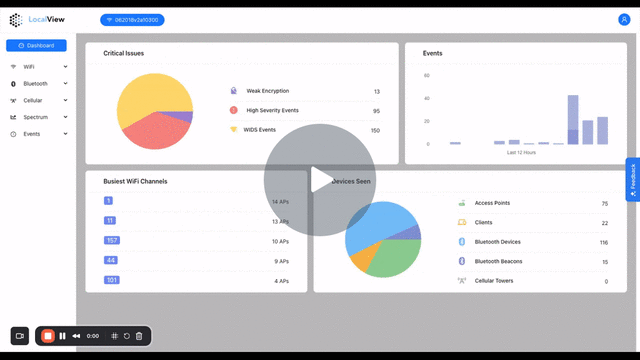
AirShield - Spectrum Waterfall / Signal Jammer - Watch Video
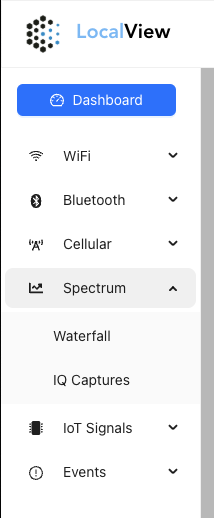
Spectrum Menu
On the left-hand menu bar you will find the Spectrum items, Waterfall and IQ Captures:
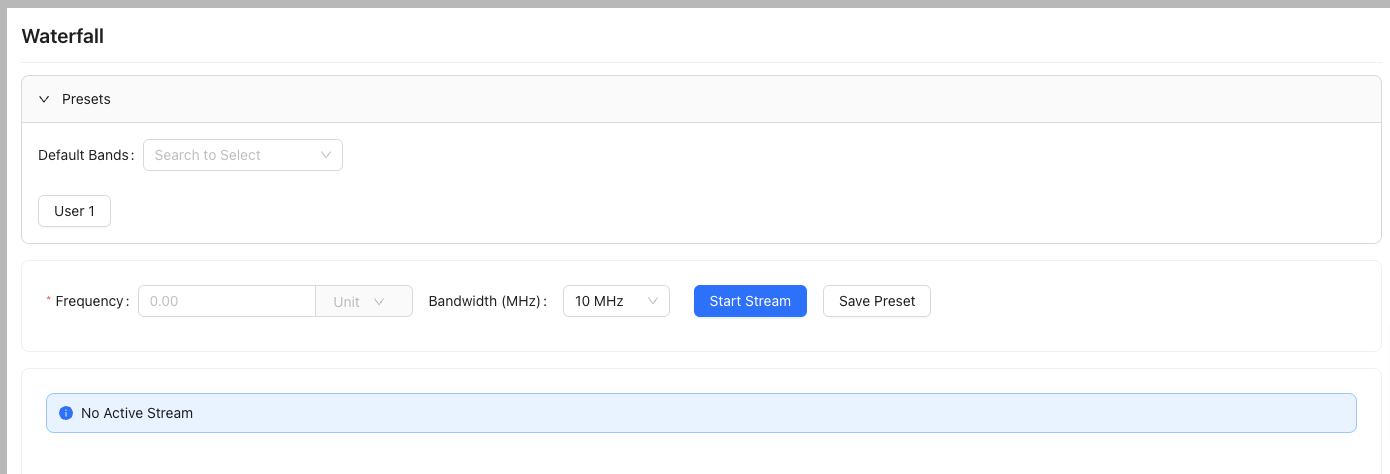
Spectrum Waterfall
The Waterfall page provides a method to display a spectrum waterfall heat map of active radio signals data for a bandwidth of frequency. It has three main areas:
- Presets
- Configuration and Start
- Output
Presets
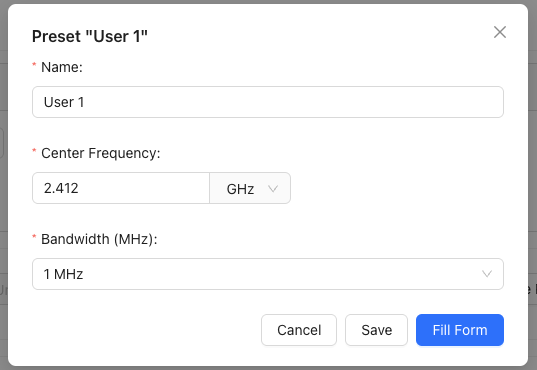
A default list of frequency bands is provided for quick access. The dropdown It includes the 802.11 2.4 GHz frequncies, US CBRS Band 48 and GPS L1, L2 and L5.
Up to 10 User-defined presets are presented as buttons. When selected a popup dialog appears with the pre-configured settings. You can modify/save an entry or fill the settings with the preset:
Configuration and Start
In the middle of the screen is the configured Frequency and its unit (Hz, MHz or GHz), the bandwidth to collected (1, 5, 10 or 20 MHz).

To start the capture and display press the Start Stream button. To save this settings as a button preset, press Save Preset.
Output
When the Start Stream button is selected, a request to the AirShield's internal process is sent. As the Software Defined Radio functions across multiple features it may a short amount of time for data to appear.
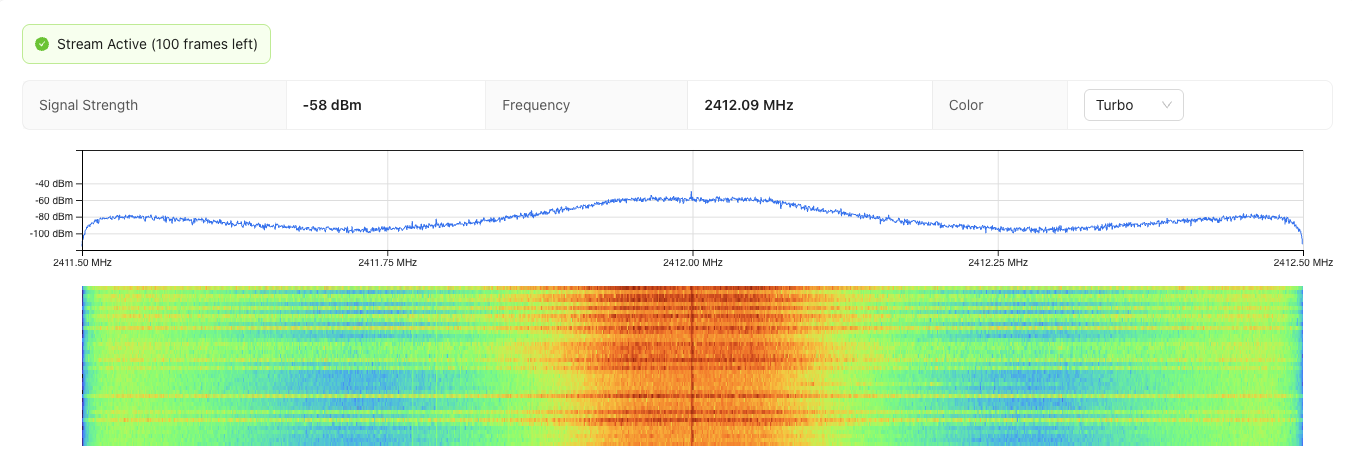
When the stream begins the number of active frames remaining are shown and a countdown begins. When the counter reaches zero (0) the capture ends, typically after a minute. You can request the same stream to reset the frame counter and continue the stream.
Any changes to the Frequency or Bandwidth will be reflected in the stream output.
The Software Defined Radio's gain controls are set to automatic during the waterfall.
IQ Capture Files
The AirShield provides a method to capture raw IQ data samples, which are useful for offline analysis with tools such as MATLAB or GnuRadio.
IQ samples are collected in signed, complex 16-bit Q11 (sc16q11) format and is compatible with GNU Radio, MATLAB, and other SDR tools. This format stores two int16_t values for I and Q. and may need to be converted to a different format for use by some tools (e.g. GQRX). Two files are created; a SigMF metadata file and a raw sc16q11 IQ data file.
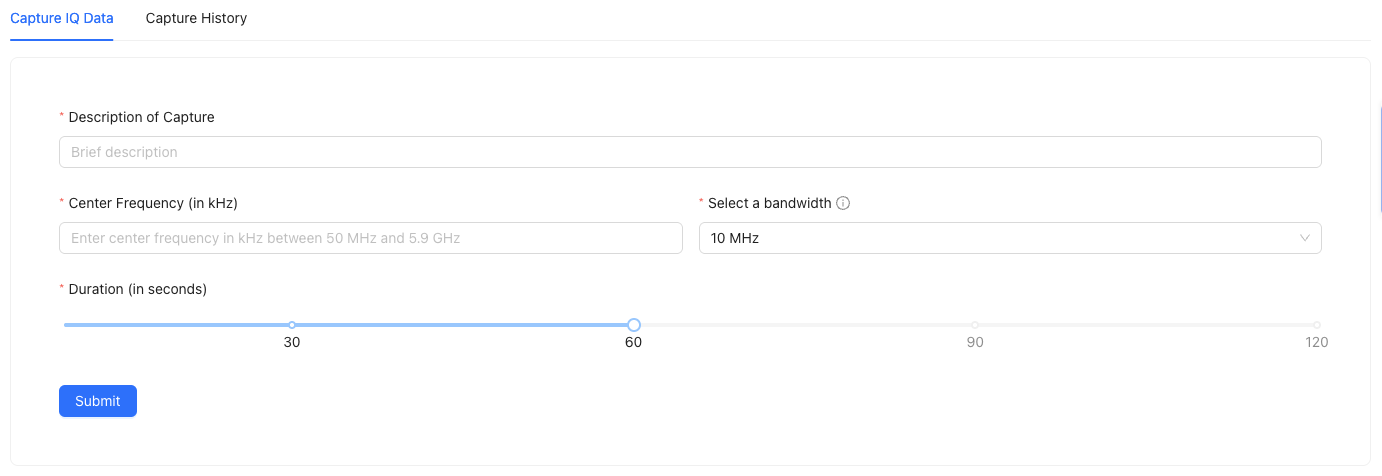
To begin a capture, enter a brief description, the center frequency in kHz and the capture bandwidth (1, 5, 10 or 20 MHz) and the capture duration in seconds.
IQ Captures are typically for advanced signals analysis and can generally create very large sized files. The larger the bandwidth and longer the time, the larger the file size.
Similar to the Spectrum Waterfall, submitting a request will initialize the process, which may take a few seconds to activate and complete.
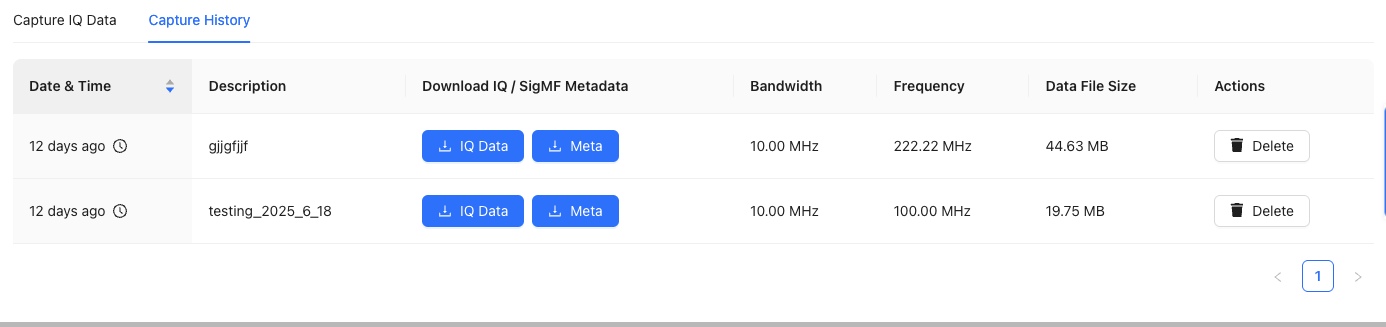
When the captures has completed, select the Capture History tab to download the IQ Data and SigMF Meta files.
Was this article helpful?
That’s Great!
Thank you for your feedback
Sorry! We couldn't be helpful
Thank you for your feedback
Feedback sent
We appreciate your effort and will try to fix the article